About the Customer Site
Working when connected to the customer website allows you to request license expiry date extensions, additional connections and license activation directly from Licensing Manager without having to send a separate file to ATS.
Login to Customer site
Open Licensing Server Manager.
Click Login.
The account login dialog opens.
Enter your account details and click Sign in.
Change Customer
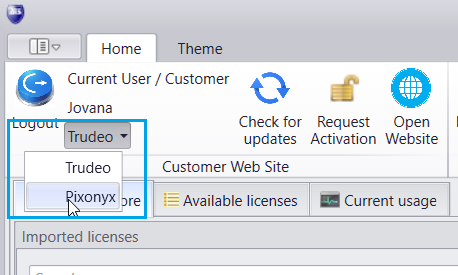
After successful login the user name is shown and the customer is shown underneath it. If your login is assigned to more than one customer you can change the customer by clicking on it and selecting a different customer from the drop-down list.
Import Licenses
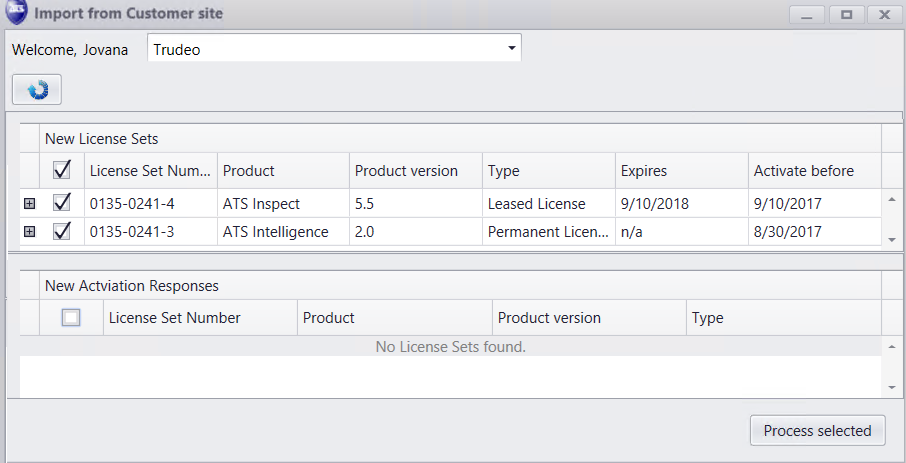
Click Check for updates to get a list of licenses for the selected customer. Only licenses not imported so far will be provided in this list. Select one, more or all available licenses and click Process selected to import licenses directly from Customer site.
Request License Activations and Updates
The following requests can be made directly to ATS from Licensing Manager:
Modify number of license connections
Import License Updates and Activations
The following updates can be made imported from ATS to Licensing Manager:
Modify number of license connections
Open Customer website
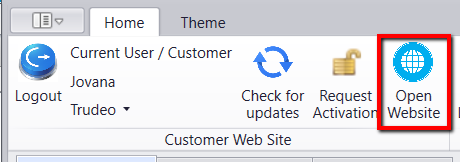
To open the Customer website in a web browser click the Open Website button in the Customer Web Site menu section.